
Binding windows & processes
"Binding" determines which windows are hidden when you press the hotkey. By binding several targets you can hide every private window in one go, leaving nothing behind when you switch context.
Open the settings window and switch to the Windows tab. It has two columns:
- Left (Open windows): the windows currently present on the system.
- Right (Bound rules): the hiding rules you have added, split into "Hidden windows" and "Hidden processes".
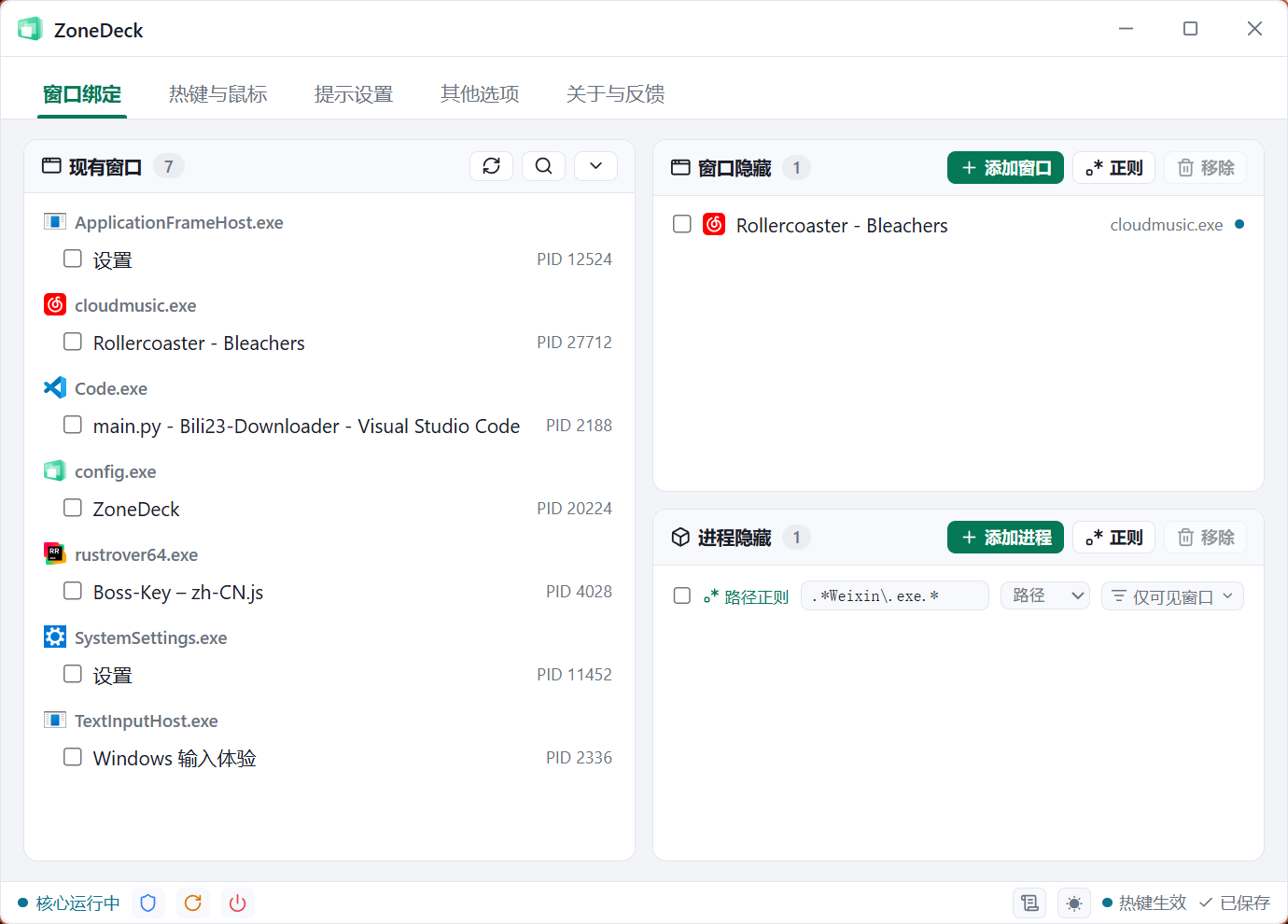
Hidden windows vs. hidden processes
ZoneDeck offers two levels of granularity:
| Type | Granularity | Description |
|---|---|---|
| Hidden windows | Fine | Targets a single window (matched by window title plus handle, with smart re-acquisition) |
| Hidden processes | Coarse | Hides every window of a program (matched by executable) |
Which to choose
- To hide one particular chat window → use hidden windows.
- To hide every window of a program (a game, a messaging app) → use hidden processes; windows opened later are hidden too.
Adding a binding
- Tick one or more windows in the "Open windows" list on the left.
- Click the "Add" button on the matching list on the right:
- Add to "Hidden windows" → creates a rule targeting that exact window.
- Add to "Hidden processes" → creates a rule hiding every window of that program.
If a window you just opened is missing from the left-hand list, click the refresh button above the list.
Filtering and searching open windows
The open-windows list has filters to help you find a target among many:
- Search box: filter by title keyword.
- Background processes: whether to show windows that are currently invisible or in the background.
- Untitled windows: whether to show windows without a title.
Removing a binding
Find the rule you no longer need in the right-hand list and click its remove button. That window will no longer be hidden.
Advanced: regular-expression matching
Besides exact targeting, ZoneDeck can match window titles and process paths in bulk with regular expressions — useful when a title changes over time, or when you want to match a whole class of programs.
Click the Regex button above the hidden-windows / hidden-processes list to create a regex rule, seeded from the current selection so it is easy to adapt.
WARNING
Regex matching is an advanced mode. Make sure you are comfortable with regex syntax; otherwise a rule may match nothing, or far too much.
If you are not familiar with regex, stick to the default exact matching.
Too-broad warning
When saving, ZoneDeck tries every pattern against 200 random strings. Matching more than half of them (100) means the pattern catches almost anything — .* is the classic case, and it would hide every window on your desktop.
A warning appears and the input turns red:
- Save anyway: the pattern is what you intended. The warning stops and the red marker clears.
- Got it: dismisses the warning but keeps the red marker so you can come back and fix it.
Neither choice affects saving; the warning is only a heads-up.
Window regex rules
The regex applies to the window title. Additional options:
- Match untitled windows: whether to include untitled windows (off by default; untitled windows are usually invisible).
- Match background windows: whether to include background / invisible windows (off by default).
For example, the title regex ^Notepad.* matches every window whose title starts with "Notepad".
By default, the Regex button adds a contains rule:
.*keyword.*This matches every window whose title contains "keyword". Adapt the expression for more complex matching.
Process regex rules
By default the regex applies to the full path of the executable. Additional options:
- File name: match on the
xxx.exefile name only, ignoring the folder it lives in. - Match untitled windows: whether to include untitled windows (off by default; untitled windows are usually invisible).
- Match background windows: whether to include background / invisible windows (off by default).
For example, the process regex .*\\WeChat\.exe$ matches the WeChat main program in any folder.
Writing regexes
Special characters such as the backslash \ and the dot . must be escaped correctly. The Windows path separator is a backslash, normally written \\ in a regex. If a rule has no effect, check the expression first.
By default, the Regex button adds a contains rule on the path:
.*program\.exe.*